
Inland Revenue Authority

2Shakes lets you specify IR authority settings that:
capture your clients signed consent for you to access IR information on their behalf.
let you specify the authority text that you want to use
decide if you wish to send a IR597 nominated party form to IR
NOTE: 2Shakes captures the consent to link. You must have this BEFORE you can link to a tax account in myIR.
Setting up your profile for IR Authority
1. To access IR authority settings, click on Business Profile in the top navigation bar, then select Authorities.
2. If you work with Inland Revenue for clients then select Inland Revenue: Show Inland Revenue Authority on the Client Signup screen using the check box in the dark grey bar.
3. Enter your IRD number. Note if your business has more than one IR number, then we recommend you use the IR number you have used when you set up MyACC for Business. As this IR number will also be used on any ACC1766 forms you submit using 2Shakes.
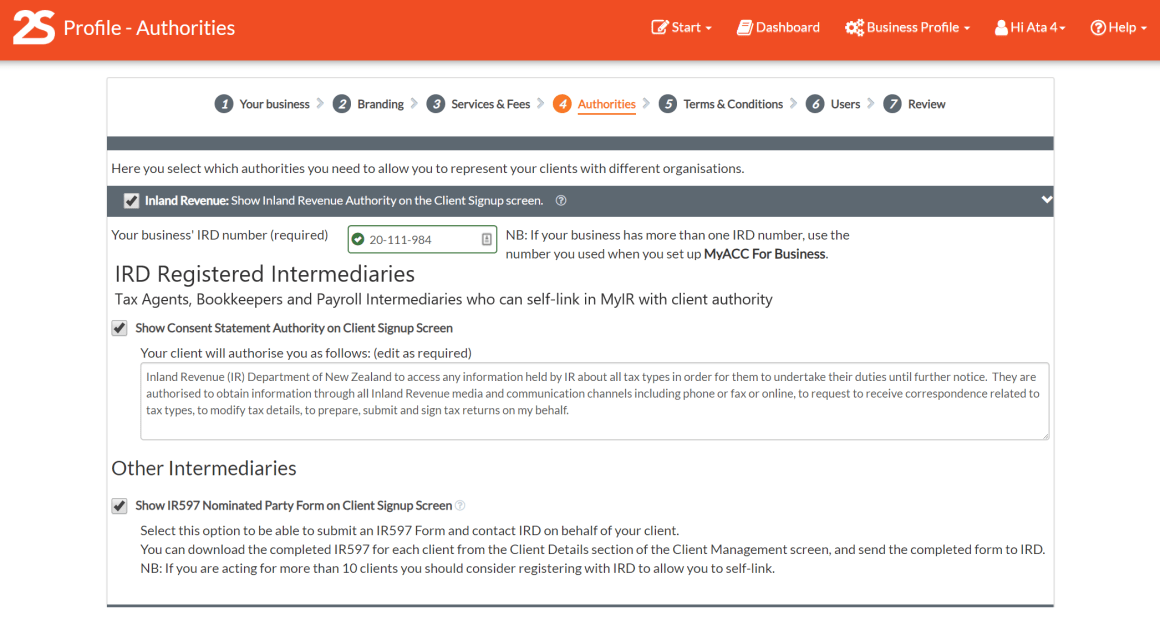
4. Check the authority text that will appear on the agreement that your client will sign. You can edit or reword this.
5. Select if you want the option of capturing IR consent using a text statement, submitting an IR597 form to Inland revenue, or both. Note: The IR597 form gets completed and signed by your client. It gives you the ability to phone IR and ask questions about the client. Anyone can use this form (regardless of whether you are registered as an intermediary as a tax agent, bookkeeper or payroll professional, or not).

6. You can upload a nominated party forms through the MyIR online portal or post printed form to Inland Revenue at:
PO Box 39010
Wellington Mail Center
Lower Hutt
7. Once it is received, IR typically take 5 working days to action this form.
IR Authority Wording
2Shakes IR recommended authority wording. This is updated by IR from time to time. If there is a change to this wording we update our customers to assist them to comply with best standard. You are also able to alter the authority wording in your Business Profile to suit your circumstances.
Disbursement Authority
For example, if you wish to have your clients IR refunds paid into your bank account you should hold evidence of your clients authority to do so. You might alter this standard authority statement as follows:
To access any information held by Inland Revenue Department of New Zealand about all tax types (except child support) in order for them to undertake their duties until further notice. They are authorised to obtain information through all Inland Revenue media and communication channels including phone or fax or online, to request to receive correspondence related to tax types, to modify tax details, to prepare, submit and sign tax returns on your behalf. They are also authorised to receive your refunds or credits from Inland Revenue.
Capturing Position for IR Authority
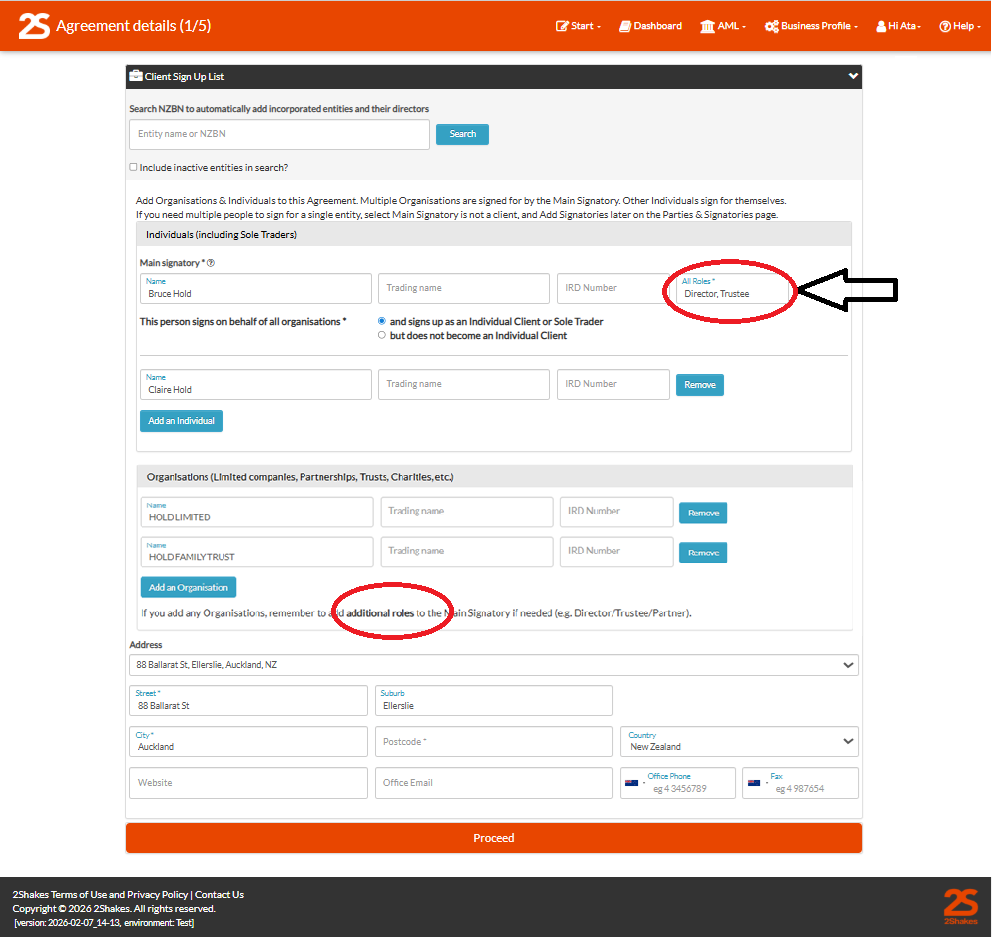
When you sign up a client and wish to capture IR Authority you need to enter the clients position in the All Roles field. For example if you are signing up two individuals (Mr and Mrs Hold), a company and a trust you would need to enter the all the roles that the main signer has that authorises them to act for the organisations. Below we can see the Director and Trustee roles.
Who is authorising who
Against the signatures on the agreement PDF you can see who is signing for which entities. All Roles you entered will display here along with an on-behalf of statement. The IR Authority text from your profile also is shown. The agreement shows the IR numbers for each tax account at the top of the agreement. Thus ensuring you meet the requirements of Inland Revenues technical guidance OS25/3.
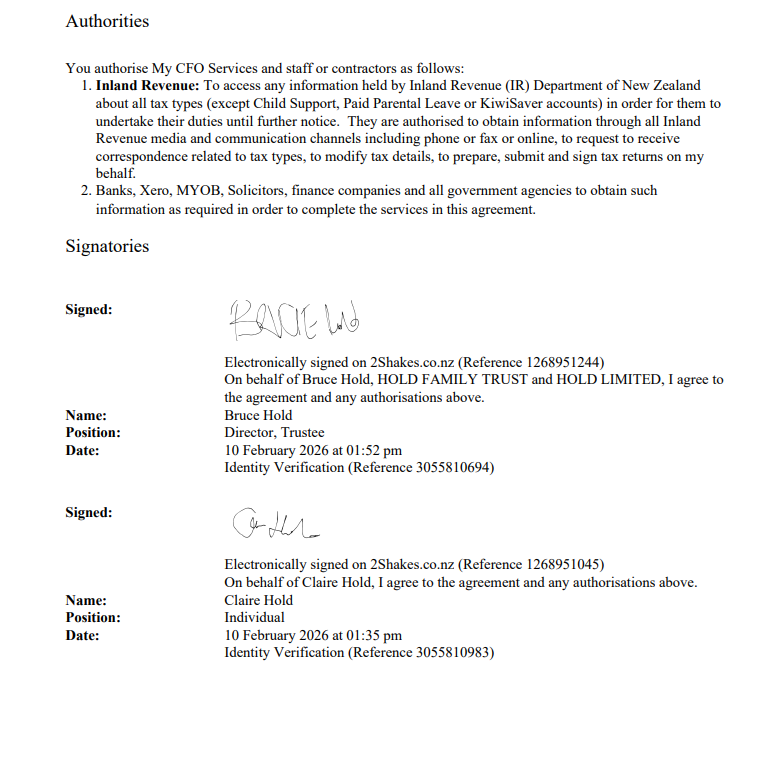
You need to add All Roles manually for organisations you have added like a Trust or a Partnership. You can find out more about roles for different entity types in the FAQ of our Inland Revenue Authority Blog.
More Help
Didn’t find what you need here? We have a blog including lots of FAQ around IR Authority that provides a wealth of information. You can also find lots more help on our main Support Page.
Or you can contact us or email us at support@2shakes.co.nz and we can help you with what you need to know.
Thanks very much,
The 2Shakes Team